
HubSpot is a native workflow integration. Connect the account once, then use it on every HubSpot node. Create or update contacts, companies, deals, and native leads, or start a workflow when a HubSpot record changes, a form is submitted, or a record is added to a Segment.
Connect HubSpot
Keen uses OAuth. When you connect HubSpot, Keen opens HubSpot in a popup so you can sign in and approve access. You do not paste a HubSpot access token into Keen.
To connect HubSpot:
- 1
Open Integrations in Keen and choose HubSpot, or add a HubSpot trigger or action to a workflow.
- 2
Click Connect. Keen opens HubSpot in a popup.
- 3
Choose the HubSpot account and approve access.
- 4
Return to the workflow and configure the HubSpot node.
Add the Keen ID
Keen and HubSpot each have their own IDs. Store the Keen lead ID on the HubSpot record so a later deal stage or lead label change can update the right lead in Keen.
To add the Keen ID:
- 1
In HubSpot, create a custom text property called Keen Lead ID on each object you will use for status sync.
- 2
When Keen creates the HubSpot record, map the Keen lead ID onto that property.
- 3
When the record starts in HubSpot, create the Keen lead first, then update the HubSpot record with the new Keen lead ID.
Ways to use HubSpot in workflows
Choose the direction that matches where the work starts:
- Start in Keen when a partner lead should create a HubSpot contact, company, deal, or native lead.
- Start in HubSpot when a Deal, Lead, form submission, or Segment membership should create a Keen lead.
- Start in HubSpot when a deal stage or lead label should update Keen.
Send a Keen lead into HubSpot
To send a Keen lead into HubSpot:
- 1
Trigger: New lead in Keen, scoped to the partner channel you care about.
- 2
Action: Create HubSpot Contact. Map the person's name, email, phone, and Keen lead ID.
- 3
Optional action: Create HubSpot Company, then associate the new contact.
- 4
Action: Create HubSpot Lead for HubSpot's native lead object, or Create HubSpot Deal if your team works deals. Associate the contact and company and include the Keen lead ID.
- 5
Save and turn the workflow on. The next partner lead lands in HubSpot with the shared Keen ID.
Receive a HubSpot record in Keen
A HubSpot trigger starts the workflow. The Keen action Create lead creates the partner lead, then a HubSpot update action stores the new Keen ID.
To receive a HubSpot record in Keen:
- 1
Trigger: New HubSpot Deal, New HubSpot Lead, HubSpot Form Submission, or Added to HubSpot Segment.
- 2
Choose the pipeline, lead label, form, or Segment when the trigger offers that filter.
- 3
Action: Create lead. Map the person, company, and other fields from the HubSpot trigger.
- 4
Action: Update the matching HubSpot Deal or Lead and write the new Keen lead ID onto its custom property.
- 5
Save and turn the workflow on.
Update Keen from HubSpot
To update Keen from HubSpot:
- 1
Trigger: HubSpot Deal Stage Changed or HubSpot Lead Label Changed.
- 2
Choose a pipeline and stage, or a new lead label, when you want the workflow limited to one change.
- 3
Action: Update lead status. Set the Keen lead ID to the custom Keen Lead ID property on the HubSpot record.
- 4
Map HubSpot stages or lead labels to Keen statuses such as Meeting, Won, or Lost.
- 5
Turn the workflow on. HubSpot changes now update the same lead in Keen.
HubSpot triggers
Use a HubSpot trigger when work starts in HubSpot and Keen should react. There are seven triggers across Deals, native Leads, forms, and Segments.
Deal
New HubSpot Deal
Fires when a deal is created in HubSpot.
Filters: Optional pipeline filter.
Updated HubSpot Deal
Fires when a HubSpot deal is updated.
Filters: Optional pipeline filter.
HubSpot Deal Stage Changed
Fires when a HubSpot deal moves to a stage.
Filters: Optional pipeline and stage filters.
Lead
New HubSpot Lead
Fires when a native HubSpot lead is created.
Filters: Optional lead label filter.
HubSpot Lead Label Changed
Fires when a native HubSpot lead label changes.
Filters: Optional new lead label filter.
Form
HubSpot Form Submission
Fires when a HubSpot form is submitted and makes the submission and contact available to later steps.
Filters: Optional form filter.
Segment
Added to HubSpot Segment
Fires when a contact, company, deal, or lead is added to a HubSpot Segment.
Filters: A Segment is required.
HubSpot actions
Use a HubSpot action when Keen should create or update a record. There are eight actions: create and update for Contact, Company, Deal, and native Lead.
Contact
Create HubSpot Contact
Create a contact in HubSpot from an earlier workflow step.
Inputs: At least one mapped field. Optionally associate a company and a deal.
Update HubSpot Contact
Update an existing HubSpot contact.
Inputs: HubSpot Contact ID, plus the fields to change. Company and deal relationships are optional.
Company
Create HubSpot Company
Create a company in HubSpot from an earlier workflow step.
Inputs: At least one mapped field. Optionally associate a contact and a deal.
Update HubSpot Company
Update an existing HubSpot company.
Inputs: HubSpot Company ID, plus the fields to change. Contact and deal relationships are optional.
Deal
Create HubSpot Deal
Create a deal in HubSpot from an earlier workflow step.
Inputs: At least one mapped field. Optionally associate a contact and a company.
Update HubSpot Deal
Update an existing HubSpot deal.
Inputs: HubSpot Deal ID, plus the fields to change. Contact and company relationships are optional.
Lead
Create HubSpot Lead
Create a native lead in HubSpot.
Inputs: HubSpot Contact ID and at least one mapped field. Company and deal relationships are optional.
Update HubSpot Lead
Update an existing native HubSpot lead.
Inputs: HubSpot Lead ID, plus the fields to change. Contact, company, and deal relationships are optional.
Field mappings and relationships
Map fields from earlier workflow steps to HubSpot properties. Create actions need at least one mapped field. Update actions also need the HubSpot record ID.
- Contact actions can associate one company and one deal.
- Company actions can associate one contact and one deal.
- Deal actions can associate one contact and one company.
- Creating a native HubSpot Lead requires a Contact ID. Lead actions can also associate a company and a deal.
- Keen uses HubSpot's default unlabeled relationship for these associations.
Route deals to partners with Segments
Use one static Deal Segment per partner. A salesperson adds a Deal to the partner's Segment, the Added to HubSpot Segment trigger fires, and Keen starts that partner's workflow.
Create one Segment per partner
Recommended setup:
- Object: Deals
- Segment type: Static
- Name: Partner | [Partner name]
- Optional folder: Partner Routing
- 1
In HubSpot, go to CRM, then Segments, and create a Segment manually.
- 2
Choose Deals as the object.
- 3
Name it Partner | [Partner name].
- 4
Choose Static as the Segment type, then save and process it.
- 5
In Keen, add Added to HubSpot Segment as the workflow trigger and select this Segment.
Static Segments fit an intentional routing decision because users can manually add and remove Deals. Active Segments are maintained by filter criteria and suit automated audiences.
Show Segment memberships on the Deal
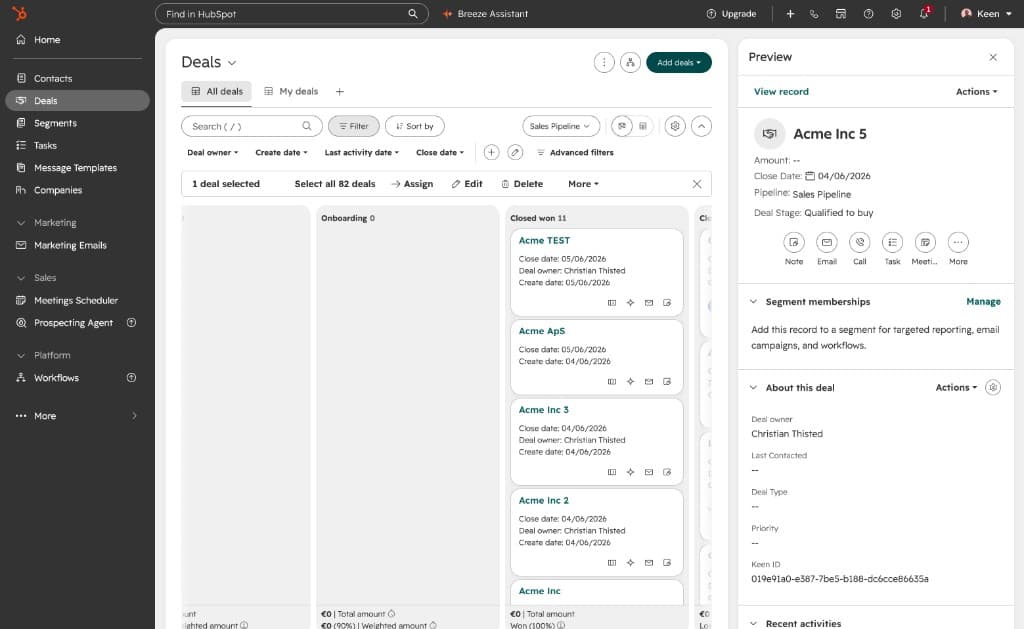
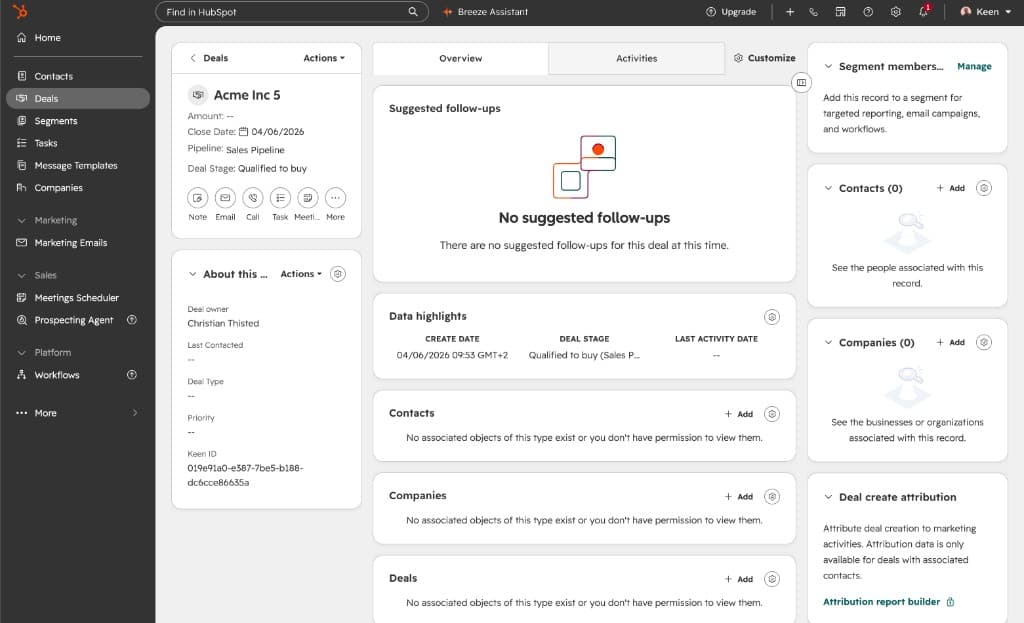
Put the Segment memberships card in both places where sales users work: the Deal Preview and the full Deal Record.
- 1
Open HubSpot Settings, then Data Management, Objects, and Deals.
- 2
Customize the Deal Preview and add the Segment memberships card to the default or relevant team view.
- 3
Place it high enough that users can reach it without excessive scrolling.
- 4
Customize the full Deal Record and add the same card in a prominent position.
- 5
Save both layouts and confirm that the sales team can see the card.
Send a Deal to a partner
For the sales user:
- 1
Open the Deal from the pipeline or the full Deal Record.
- 2
Find the Segment memberships card and click Manage.
- 3
Add the Deal to the partner Segment, for example Partner | Acme.
- 4
Continue working in HubSpot. Keen handles the partner workflow from there.
For batch routing, select Deals from the object index page and add them to a static Segment. Managing membership on the Deal keeps the ordinary workflow closest to the salesperson's work.
Remove or change the partner
Remove the Deal from its current static Segment. If it should move to another partner, add it to the new partner Segment and make sure the Keen workflow follows your duplicate-handling rules.
Permissions to check:
- HubSpot admins or RevOps need permission to create and edit partner Segments.
- Sales users need Segment write access and Deal edit access to route Deals.
- CRM admins need record layout permissions to customize the Deal Preview and Record.
Implementation checklist
- □ Connect HubSpot to Keen with the required permissions.
- □ Create one static Deal Segment per partner.
- □ Use the Partner | [Partner name] naming convention.
- □ Add Segment memberships to the Deal Preview and Record.
- □ Give sales users permission to change membership.
- □ Map every partner Segment to the right Keen workflow.
- □ Store the Keen lead ID on the HubSpot record.
- □ Test one Deal from Segment membership to the partner flow.
- □ Define how multiple partners and partner changes work.